
Event Manager is the core component for arena combat minigames
EMInterface - This plugin manages all the UI elements used by Event ManagerEvent Statistics - This plugin handles all the event statistics from event games
Kits - This is used to give event players gear and weaponsSpawns Database - This is used for player spawn pointsZone Manager - This is used primarily to restrict event players to the event area. This can be expanded to your liking with zone flags
Once you have prepared these you can access the event creator via the Admin tab of the event menu.
To create a event click the "Create Event" button. You will be prompted to select an event mode, once you have selected a mode you just need to fill in the options.
There are 3 types of fields here;
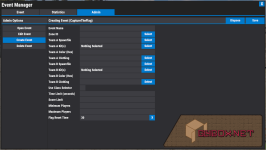
This picture is depicting a Capture The Flag event. Go through each option here and fill out the details. Once you are done click the "Save" button.
This event will now be accessible from the "Open Event" tab.
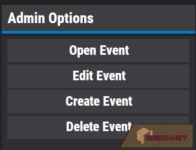
All event management can be done via the 'Admin' tab of the event menu. From here you can;
In the auto-event section of the config you can specify which events to run on a timer by adding the event name to the list.ex.
Use this for global hook usage (ie Interface.CallHook("....)
Dependencies
Event Manager requires a few plugins to function. You can find links for these plugins at the top of the overviewEMInterface - This plugin manages all the UI elements used by Event ManagerEvent Statistics - This plugin handles all the event statistics from event games
Kits - This is used to give event players gear and weaponsSpawns Database - This is used for player spawn pointsZone Manager - This is used primarily to restrict event players to the event area. This can be expanded to your liking with zone flags
Commands
This plugin provides both chat and console commands using the same syntax. When using a command in chat, prefix it with a forward slash: `/`.- /event - Opens the event menu
Permissions
This plugin uses the permission system. To assign a permission, use oxide.grant <user or group> <name or steam id> <permission>. To remove a permission, use oxide.revoke <user or group> <name or steam id> <permission>.- eventmanager.admin - Required to access any of the admin functionality in the event menu
Creating Events
Before you can create a event you first must prepare the components necessary for a event to run.These include;- Spawnfile(s) - Which are used to spawn the players
- Kit(s) - Which are used to give players the items they need for the event
- Zone - Which is used to keep the players inside the designated event area
Once you have prepared these you can access the event creator via the Admin tab of the event menu.
To create a event click the "Create Event" button. You will be prompted to select an event mode, once you have selected a mode you just need to fill in the options.
There are 3 types of fields here;
- Input Fields - These will require you click on them and enter text. When you are done hit the Enter key to store that line. To clear the line click the "X" at the end of it to clear that field
- Selection Fields - These will open another window where you can make a selection from a list of options
- Toggle Fields - These are simple on/off toggles
This picture is depicting a Capture The Flag event. Go through each option here and fill out the details. Once you are done click the "Save" button.
This event will now be accessible from the "Open Event" tab.
Creating Zones
Zones are an important part of moderating events. You can find more detailed information on creating zones on the Zone Manager overview. Here I will give a brief example.- Find the area in which you want to create an arena
- Use the command /zone_add. This will create a zone on your position.
- Change the size of the zone using '/zone radius XX' replacing XX with the radius of the zone (eg. 30)
- You can add additional zone flags if you desire, but just a standard zone with no flags is enough to keep event players inside
- Take note of the ZoneID and add it to your event config/auto event config
Creating Spawnfiles
Spawnfiles are a necessary part of events. They determine where the player will respawn after death and at the beginning of a event. Here is a brief example on how to create a spawnfile- Type /spawns new
- Walk to a location where you would like a spawnpoint and type /spawns add
- Repeat this to create as many spawn locations as you want
- When done type /spawns save <filename> be sure to remember this file name as you will need to to configure events
Creating Kits
Kits are needed in one way or another. Use the Kits plugin to create kits for your event players to use in combat. As stated above you can use 1 kit for all, or create multiple and use the class selector. You can read more about creating kits on the Kits plugin overviewManging Events
All event management can be done via the 'Admin' tab of the event menu. From here you can;
- Open pre-made events
- Edit existing events
- Create new events
- Delete existing events
- Close Event - Closes an open event to prevent further players from joining
Setting up Auto-Events
You can create a loop of events that run on a timer. To enable this feature you need to of already created some events.In the auto-event section of the config you can specify which events to run on a timer by adding the event name to the list.ex.
Rewards
You can opt to give rewards to players for kills, headshots and event wins. You can select between 3 reward systems;- ServerRewards (RP)
- Economics
- Scrap
Configuration
The settings and options can be configured in the EventManager file under the config directory. The use of an editor and validator is recommended to avoid formatting issues and syntax errors.API
Use this for direct hook usage (ie. EventManager.Call(".....)Use this for global hook usage (ie Interface.CallHook("....)
