Performance UI displays server performance information in a user-friendly way.
Permisions are enabled by default (Look into configuration).
performanceui.use
Gives user the ability to use /performance command
performanceui.usegui
Gives user the ability to see use /performance gui command
Player will receive a chat message which contains:
Player will see UI with server tickrate and framerate, which updates every second. Command used when UI is already at the players screen wil close it
/performance help
Player will receive a chat message with command usage guide
In the config file You can enable or disable permissions usage and configure UI placement and size.
In the language file You can configure messages sent to player. By now this plugin translated to English (default) and Russian languages. If You want to make a contribution in translating to any other language feel free to fork this project at the and then make a pull request.
English:
Russian:
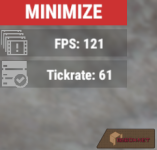
Server with normal performance will show up like that:
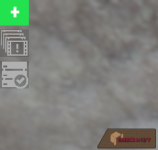
Minimized:
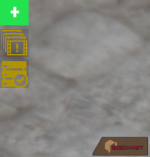
When performance is low UI looks like:
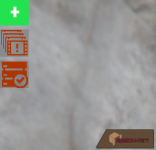
With critical low performance UI will appear red:
Permissions
This plugin uses the permission system. To assign a permission, use oxide.grant <user or group> <name or steam id> <permission>. To remove a permission, use oxide.revoke <user or group> <name or steam id> <permission>.Permisions are enabled by default (Look into configuration).
performanceui.use
Gives user the ability to use /performance command
performanceui.usegui
Gives user the ability to see use /performance gui command
Chat Commands
/performancePlayer will receive a chat message which contains:
- Server framerate and frametime
- Server ACTUAL tickrate
- His ping to the server
Player will see UI with server tickrate and framerate, which updates every second. Command used when UI is already at the players screen wil close it
/performance help
Player will receive a chat message with command usage guide
Configuration
The settings and options can be configured in the PerformanceUI file under the config directory. The use of an editor and validator is recommended to avoid formatting issues and syntax errors.In the config file You can enable or disable permissions usage and configure UI placement and size.
Localization
The default messages are in the PerformanceUI file under the lang/en directory. To add support for another language, create a new language folder (e.g. de for German) if not already created, copy the default language file to the new folder and then customize the messages.In the language file You can configure messages sent to player. By now this plugin translated to English (default) and Russian languages. If You want to make a contribution in translating to any other language feel free to fork this project at the and then make a pull request.
English:
Russian:
Dependency
This plugins uses ImageLibrary to store icons of the UI, so please, make sure it is installed.Screenshots
Plugin uses function to determine if server performance is low and icon color changes. Nominal performance (server.tickrate and fps.limit values) divided by actual performance < 1.5 considered low (yellow icon color) and < 2 considered critical (red icon color)Server with normal performance will show up like that:
Minimized:
When performance is low UI looks like:
With critical low performance UI will appear red: